
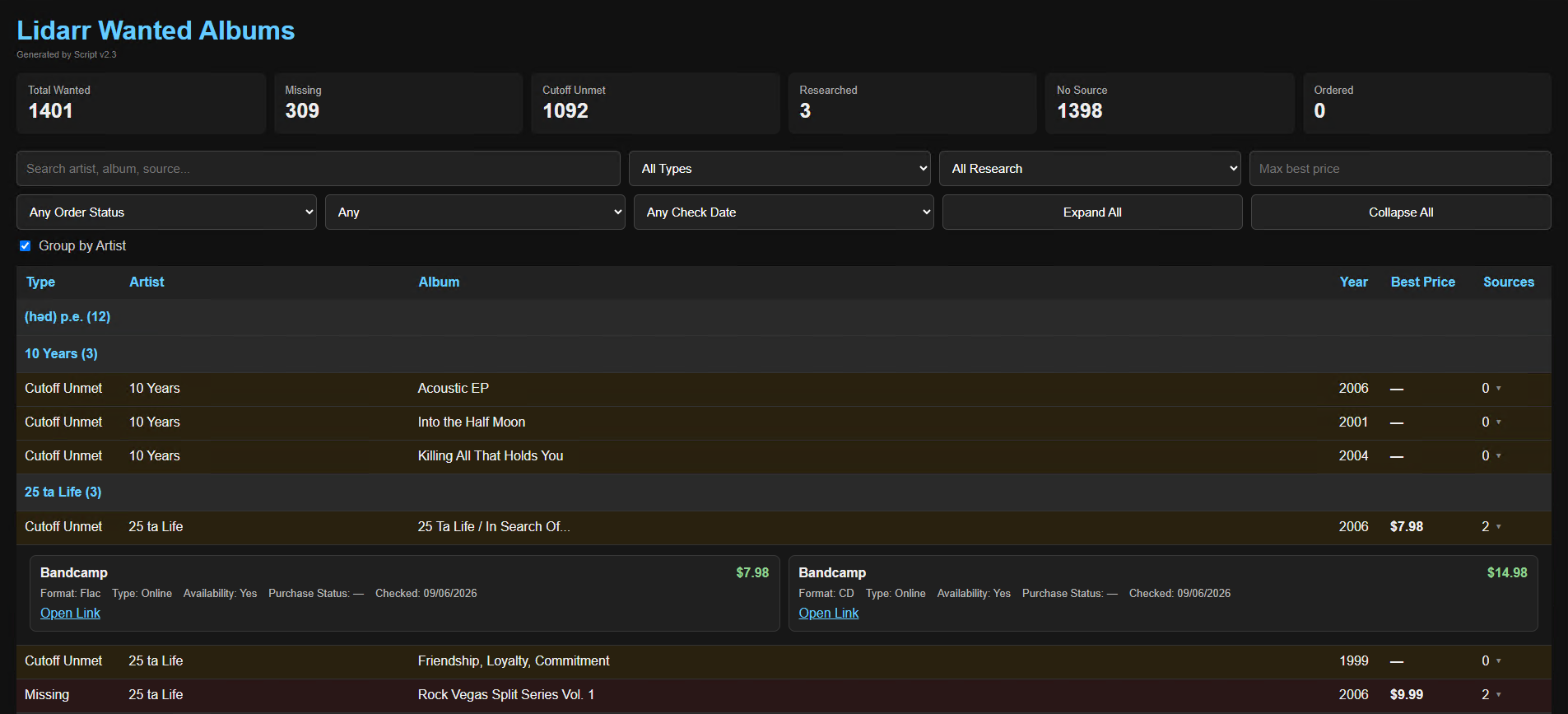
If you use Lidarr to manage your music collection, this PowerShell script creates a searchable, mobile-friendly HTML report of all albums currently listed as Missing or Cutoff Unmet in Lidarr.
I originally created it to make my Lidarr wanted list more useful when searching for music online or browsing a record store. In addition to showing what Lidarr wants, the report lets you keep persistent research about where you’ve found an album, its price and format, availability, purchase links, notes, and whether you’ve already ordered it.
The generated report is a single self-contained HTML file, so you can open it locally, copy it to your phone, or upload it to your own web server.
Features
- Displays Lidarr Missing and Cutoff Unmet albums
- Searchable and sortable album list
- Mobile-friendly interface
- Group albums by artist
- Track multiple sources for the same album
- Record prices, formats, URLs, availability, and notes
- Automatically displays the lowest researched price as Best Price
- Filter sources by Local or Online
- Filter albums by maximum Best Price
- Identify research that hasn’t been checked recently
- Track albums you’ve already purchased as ORDERED
- Prominent ORDERED status helps prevent accidentally purchasing an album twice
- Research and purchase information persists when the report is regenerated
- Generates a separate simplified Artist/Album CSV for other uses
- No database or web server is required
- The generated HTML report does not require a connection to Lidarr
Download
The ZIP contains:
Export-LidarrWanted.ps1– the PowerShell scriptREADME.txt– complete setup and usage instructionsWantedAlbums-Sources-Example.csv– example showing how to enter research and multiple sources
Requirements
You’ll need:
- Windows
- PowerShell
- A working Lidarr installation
- Your Lidarr API key
Excel, LibreOffice, or another CSV editor is optional but recommended for maintaining your album research.
Quick Start
Extract the ZIP to a folder and open Export-LidarrWanted.ps1 in a text editor.
Near the top of the script, configure your Lidarr address and API key:
$ApiKey = "YOUR-LIDARR-API-KEY"
$Lidarr = "http://localhost:8686"
You can find your API key in:
Lidarr → Settings → General → Security → API Key
Then run:
.\Export-LidarrWanted.ps1
By default, the generated files are saved in the same directory as the script.
The main file you’ll use is:
WantedAlbums.html
Open it in a web browser to view your report.
Tracking Sources, Prices and Research
The first time the script runs, it creates:
WantedAlbums-Sources.csv
This is where you can enter your own research for each album.
You can track information including:
- Source or store
- Price
- URL
- Format
- Last checked date
- Availability
- Local or Online
- Notes
- Purchase status
For example, you might record that an album is available as FLAC from Bandcamp for $9.99, on CD from Discogs for $14.99, and at a local record store for $11.99.
To add multiple sources for the same album, simply duplicate its row in the CSV and leave the AlbumKey unchanged.
The next time you run the script, all of those sources will appear underneath the album in the HTML report.
Already Bought It?
If you purchase an album online but it hasn’t arrived yet, set its PurchaseStatus in WantedAlbums-Sources.csv to:
Ordered
The next generated report will prominently display the album as ORDERED.
This is particularly useful if you’re looking through the report at a record store and can’t remember whether you already purchased a copy somewhere else.
The Ordered status persists across subsequent script runs.
Once the album arrives and you import it into your music library, Lidarr will eventually stop reporting it as wanted and it will disappear from the active report normally.
Your Research Is Preserved
Running the script again does not erase your research.
The script maintains two persistent CSV files:
WantedAlbums-Tracking.csv
Automatically maintained by the script. Normally, you should not edit this file.
WantedAlbums-Sources.csv
Contains the sources, prices, links, notes, and purchase information you enter manually.
This means you can regenerate WantedAlbums.html whenever you want while retaining all of the research you’ve accumulated.
I recommend backing up these two CSV files, particularly WantedAlbums-Sources.csv.
Using the Report on Your Phone
One of the main reasons I created the report was to make my wanted list useful away from my computer.
WantedAlbums.html is self-contained. The album data, research, styling, search, sorting, and filtering functionality are all embedded in that single file.
You can copy it to a phone/tablet or host it on your own web server and use it while shopping for music.
External links to stores and marketplaces will naturally require an Internet connection when opened.
Other Output
The script also generates:
WantedAlbums-Search.csv
This is a simplified export of the current wanted albums that can be used in Excel, PowerShell scripts, or other tools.
Notes
This is an independent community script and is not affiliated with or officially supported by Lidarr.
The script uses your Lidarr API key to query your own Lidarr installation. Never publish your API key.
If you publish the generated WantedAlbums.html on the Internet, remember that any URLs and Notes you’ve entered into WantedAlbums-Sources.csv are embedded in that HTML file. Review the report before making it publicly accessible.
For complete setup instructions and details about each CSV field, see the included README.txt.
